
Gimodi
Your voice, your server, your rules.
A self-hosted, decentralized voice and text chat application. No accounts, no central authority - connect with a nickname to independent servers. Privacy-first, completely free, and fully open source.
Your voice, your server, your rules.
A self-hosted, decentralized voice and text chat application. No accounts, no central authority - connect with a nickname to independent servers. Privacy-first, completely free, and fully open source.
Get started with Gimodi in minutes.
The Gimodi desktop client is built with Electron and runs on Windows, macOS, and Linux. Connect to any Gimodi server, join voice and text channels, share your screen, and manage your identity - all from a single app.
Loading available downloads...
Host your own Gimodi server using Docker. The server handles voice routing via mediasoup, text channels, file sharing, and identity management. All data stays on your machine.
docker run -d --name gimodi \
  -p 6833:6833/tcp \
  -p 40000:40000/udp \
  -e "GIMODI_NAME=My Server" \
  -e GIMODI_MEDIA_ANNOUNCED_IP=YOUR_PUBLIC_IP \
  -e GIMODI_MEDIA_WORKERS=1 \
  -v $(pwd)/data:/app/data \
gimodi/gimodiservices:
gimodi:
image: gimodi/gimodi
restart: unless-stopped
ports:
- "6833:6833/tcp"
- "40000:40000/udp"
environment:
- GIMODI_NAME=My Server
- GIMODI_MEDIA_ANNOUNCED_IP=YOUR_PUBLIC_IP
- GIMODI_MEDIA_WORKERS=1
volumes:
- ./data:/app/dataEverything you need for private, self-hosted communication.
No analytics, no telemetry, no tracking. Gimodi doesn't phone home - ever. Your conversations are nobody's business but yours.
Run your own server, keep all your data. Messages, files, identities - everything stays on your hardware, under your full control.
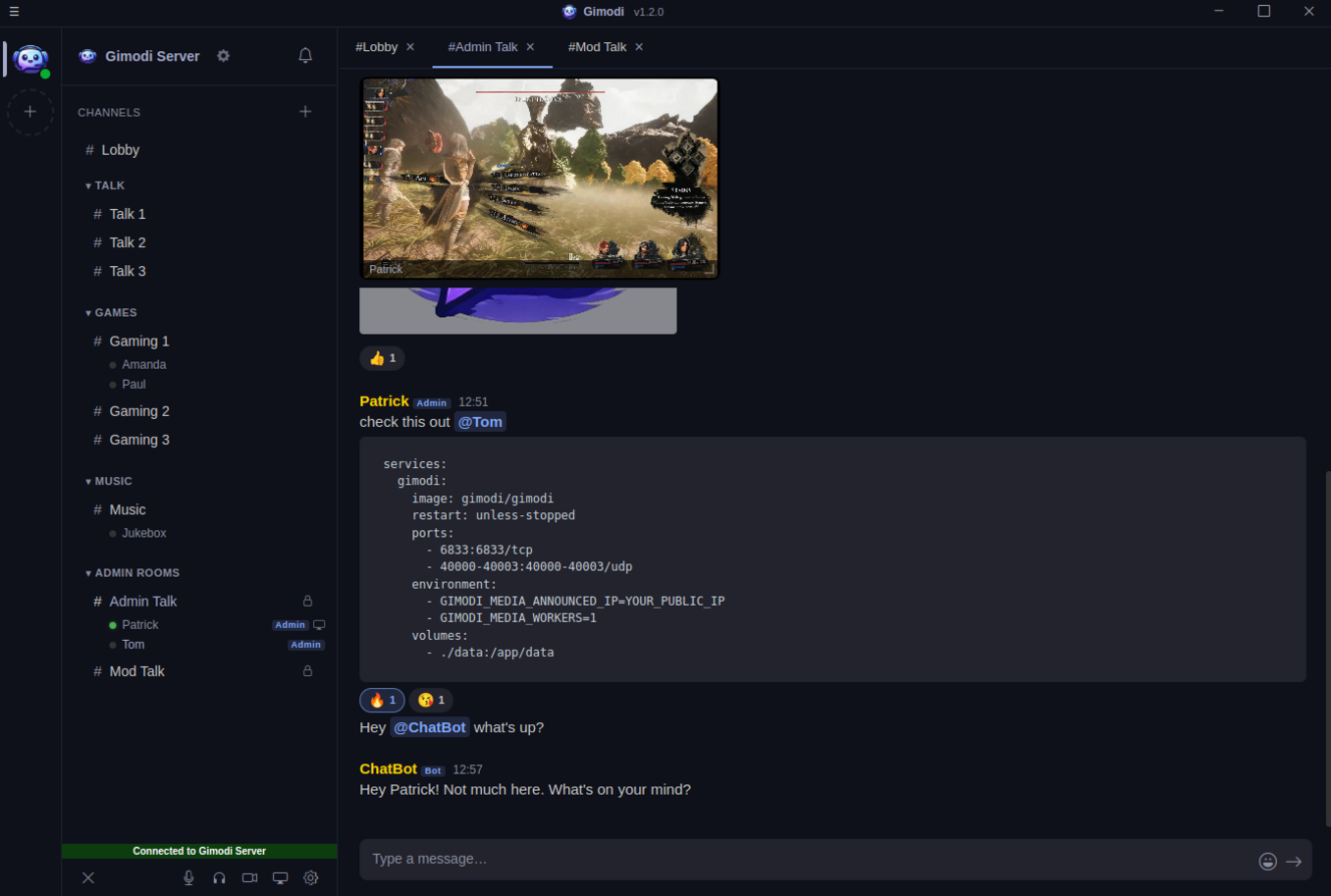
Crystal-clear voice chat powered by mediasoup SFU, plus rich text channels with markdown rendering and file sharing.
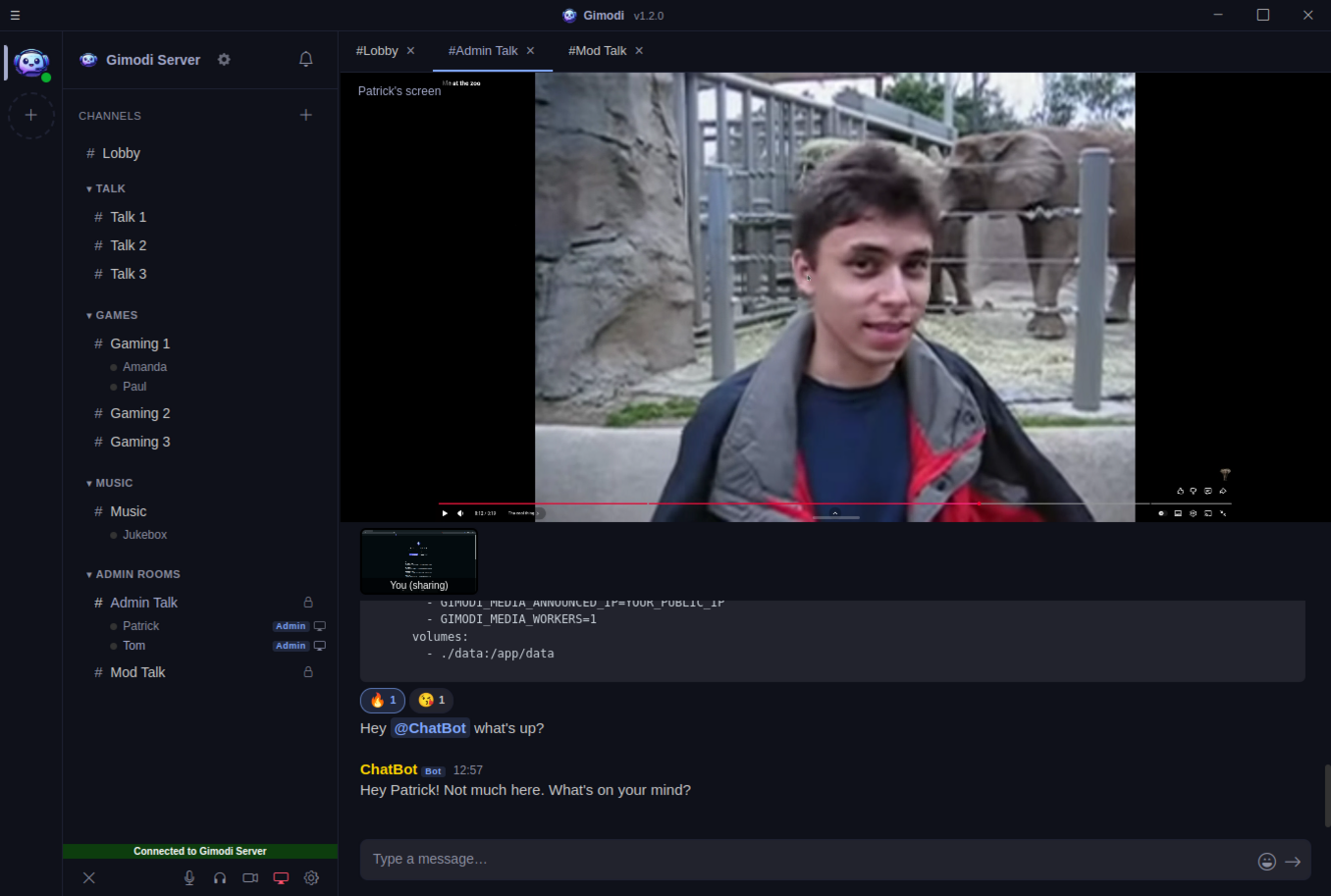
Share your screen with full audio support. Perfect for watching content together, presentations, or collaborative work sessions.
Share your webcam in voice channels for face-to-face conversations. Pop out the video view for multitasking.
High-quality audio powered by Opus codec and mediasoup's SFU architecture. Low latency, clear voice, minimal bandwidth usage.
Gimodi is fully open source. No subscriptions, no premium tiers, no feature gates. Every feature is available to everyone, always. Inspect, modify, and contribute to the code.
Private messages are encrypted with OpenPGP. Not even the server operator can read your direct messages. True privacy by design.
Connect to any server with just a nickname. Want persistent identity? Create an OpenPGP key pair and export it - no email, no phone number, no sign-up.
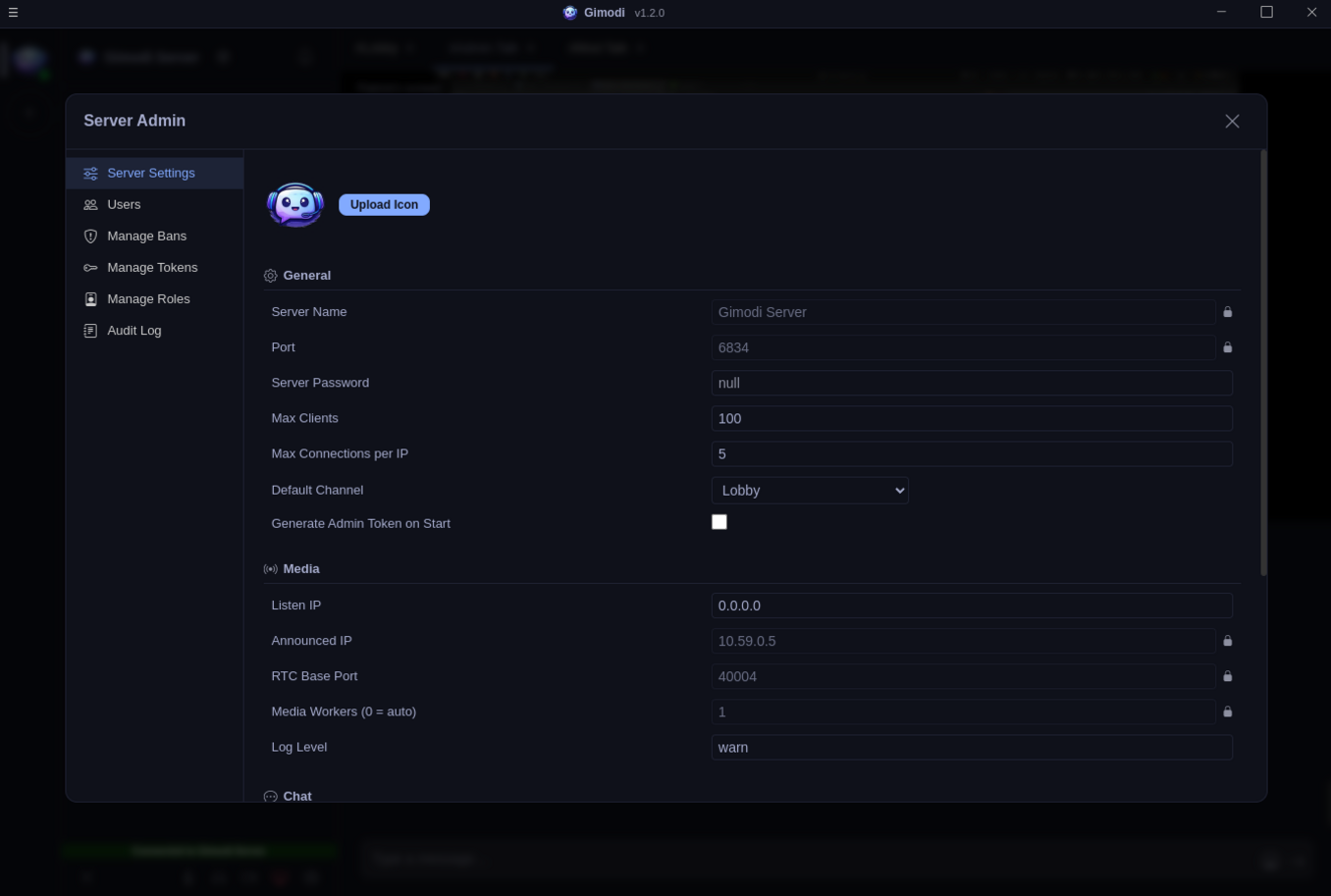
Full role-based access control. Create custom roles, assign granular permissions, restrict channels - manage your community your way.
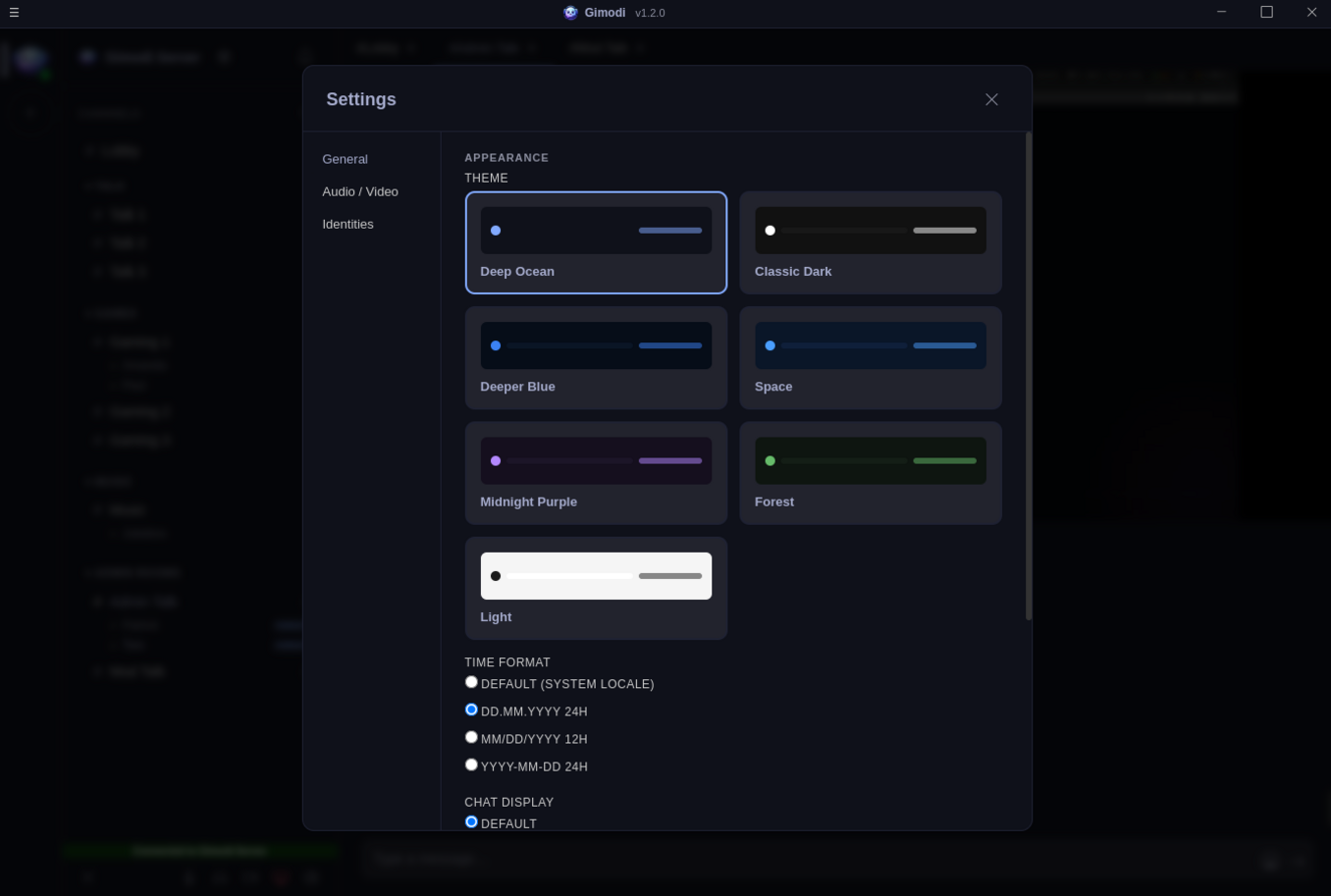
Choose from several built-in themes to customize the look and feel of your client. Make it yours.
The server runs lean. Minimal CPU and memory footprint, even with active voice channels. Perfect for a small VPS or a Raspberry Pi.
Building the voice chat we always wanted.
Gimodi was born from a simple idea: voice and text chat shouldn't require you to surrender your privacy. We built a platform where communities can communicate freely on their own terms, on their own infrastructure, without corporate intermediaries.
Gimodi is fully open source and completely free. No subscriptions, no premium tiers, no hidden costs. Download, install, and run your own server without paying a cent. The source code is open for everyone to inspect and contribute to.
The client is built with Electron for cross-platform desktop support. The server runs on Node.js with mediasoup for high-quality WebRTC voice routing, SQLite for lightweight persistence, and WebSocket for real-time signaling.
Gimodi is shaped by its community. Whether you're reporting bugs, suggesting features, or contributing code - every voice matters. Help build the future of self-hosted communication.
Everything you need to set up and run your own Gimodi server.
Get a Gimodi server running in minutes using Docker. All you need is a machine with Docker installed and a public IP address (or domain) so clients can connect.
If you don't have Docker installed yet, follow the official guide for your operating system:
https://docs.docker.com/get-docker/
Create a directory where the server will store its database, uploaded files, and SSL certificates:
mkdir -p gimodi/dataRun the container with the required port mappings. Replace YOUR_PUBLIC_IP with the public IP address of your machine (or your domain name):
docker run -d --name gimodi \
-p 6833:6833/tcp \
-p 40000:40000/udp \
-e "GIMODI_NAME=My Server" \
-e GIMODI_MEDIA_ANNOUNCED_IP=YOUR_PUBLIC_IP \
-e GIMODI_MEDIA_WORKERS=1 \
-v $(pwd)/gimodi/data:/app/data \
gimodi/gimodi6833/tcp is used for the WebSocket and HTTPS connections. Port 40000/udp is used for voice, webcam, and screen sharing media traffic (WebRTC).
Alternatively, you can use Docker Compose. Create a docker-compose.yml file:
services:
  gimodi:
    image: gimodi/gimodi
    restart: unless-stopped
    ports:
      - "6833:6833/tcp"
      - "40000:40000/udp"
    environment:
      - GIMODI_NAME=My Server
      - GIMODI_MEDIA_ANNOUNCED_IP=YOUR_PUBLIC_IP
      - GIMODI_MEDIA_WORKERS=1
    volumes:
- ./data:/app/dataThen start it with:
docker compose up -dOn first start, the server generates a one-time admin token and prints it to the container logs. Retrieve it with:
docker logs gimodiLook for a line containing the admin token. Copy it — you'll need it to claim admin privileges from the client.
Open the Gimodi client, enter your server's address (YOUR_PUBLIC_IP:6833), pick a nickname, and connect. Once connected, go to the menu and select Redeem Token to paste your admin token and gain full administrative control.
The server automatically generates a self-signed SSL certificate on first start. The client will accept self-signed certificates. If you want to use your own certificate (e.g. from Let's Encrypt), place your cert.pem and key.pem in the data directory and configure the paths with GIMODI_SSL_CERT_PATH and GIMODI_SSL_KEY_PATH.
Gimodi is lightweight and runs well on modest hardware. Here are the minimum requirements:
| Resource | Minimum | Notes |
|---|---|---|
| Architecture | x86_64 (amd64) | ARM is not currently supported |
| CPU | 1 core | Each mediasoup worker uses one core. Add more cores for higher voice capacity |
| RAM | 1 GB | Sufficient for typical community use |
| Disk | 1 GB | Base install. Actual usage depends on chat history and file uploads |
| Network | Public IP | Required for WebRTC media. A domain name is recommended but not required |
GIMODI_MEDIA_WORKERS and open additional UDP ports accordingly (e.g. 4 workers = ports 40000-40003).
Disk usage grows over time depending on your configuration. If GIMODI_CHAT_PERSIST_MESSAGES is enabled (default), all chat messages are stored in the SQLite database. Uploaded files are stored on disk in the configured storage path. You can limit the maximum upload size with GIMODI_FILES_MAX_FILE_SIZE.
The server is configured through environment variables. Settings can also be changed at runtime via the admin panel in the client, which stores them in the SQLite database. Environment variables always take the highest priority and override database values.
Priority order (highest wins):
Boolean values accept true or 1 for true, anything else for false. Set a value to null or an empty string to clear it.
| Variable | Default | Description |
|---|---|---|
GIMODI_NAME |
Gimodi Server |
The display name of your server, shown to clients in the connection list and title bar. |
GIMODI_PORT |
6833 |
The TCP port for HTTPS and WebSocket connections. Clients connect to this port. |
GIMODI_PASSWORD |
null |
Server password. When set, clients must provide this password to connect. Set to null for an open server. |
GIMODI_MAX_CLIENTS |
100 |
Maximum number of concurrent client connections allowed. |
GIMODI_MAX_CONNECTIONS_PER_IP |
5 |
Maximum number of WebSocket connections from a single IP address. Helps prevent abuse. |
GIMODI_DEFAULT_CHANNEL_ID |
null |
Override which channel clients join on connect. When null, uses the channel marked as default in the database. |
GIMODI_GENERATE_ADMIN_TOKEN |
false |
When true, generates a temporary admin token on every server startup that expires after 1 hour. Useful for regaining admin access. |
These settings control the mediasoup SFU which handles all real-time audio and video.
| Variable | Default | Description |
|---|---|---|
GIMODI_MEDIA_LISTEN_IP |
0.0.0.0 |
The IP address mediasoup binds to for WebRTC transports. Use 0.0.0.0 to listen on all interfaces. |
GIMODI_MEDIA_ANNOUNCED_IP |
null |
The public IP address announced to clients for WebRTC connections. Required when running behind NAT or in the cloud. Set this to your server's public IP or domain. |
GIMODI_MEDIA_RTC_PORT |
40000 |
The base UDP port for WebRTC media traffic. Each worker uses one port sequentially starting from this number (e.g. 40000, 40001, 40002, ...). |
GIMODI_MEDIA_WORKERS |
0 |
Number of mediasoup worker processes to spawn. Each worker runs on a separate CPU core and handles voice/video routing. Set to 0 to auto-detect the number of CPU cores. |
GIMODI_MEDIA_LOG_LEVEL |
warn |
Log verbosity for mediasoup. Options: debug, warn, error, none. |
GIMODI_MEDIA_ANNOUNCED_IP must be set correctly for voice to work. If clients can connect but cannot hear each other, this is almost always the cause. Set it to the public IP address or domain name that clients use to reach your server.
| Variable | Default | Description |
|---|---|---|
GIMODI_CHAT_PERSIST_MESSAGES |
true |
When enabled, chat messages are stored in the database and clients can load message history. Disable to make all messages ephemeral. |
GIMODI_CHAT_TEMP_CHANNEL_DELETE_DELAY |
180 |
Number of seconds to wait before automatically deleting an empty temporary channel. Temporary channels are user-created channels that get cleaned up when everyone leaves. |
| Variable | Default | Description |
|---|---|---|
GIMODI_FILES_MAX_FILE_SIZE |
10737418240 |
Maximum file upload size in bytes. Default is 10 GB. Set to a lower value to conserve disk space (e.g. 52428800 for 50 MB). |
GIMODI_FILES_STORAGE_PATH |
./data/uploads |
Directory where uploaded files are stored on disk. |
GIMODI_FILES_PUBLIC_URL |
null |
Public base URL for file download links. When null, the server auto-detects the URL from the client's Host header. Set this if your server is behind a reverse proxy with a different public URL. |
| Variable | Default | Description |
|---|---|---|
GIMODI_SSL_CERT_PATH |
./data/cert.pem |
Path to the SSL certificate file. If the file doesn't exist, a self-signed certificate is generated automatically. |
GIMODI_SSL_KEY_PATH |
./data/key.pem |
Path to the SSL private key file. Auto-generated alongside the certificate if missing. |
These are managed automatically when you upload a server icon through the admin panel. You generally don't need to set them manually.
| Variable | Default | Description |
|---|---|---|
GIMODI_ICON_HASH |
null |
SHA-256 hash of the current server icon. Used by clients for caching. |
GIMODI_ICON_FILENAME |
null |
Filename of the server icon on disk. |
data/ directory to a safe location before pulling a new version. This directory contains your database, uploaded files, and SSL certificates.
Before any update, create a backup of your data directory:
cp -r ./data ./data-backup-$(date +%Y%m%d)Pull the latest image, stop and remove the old container, then start a new one:
docker pull gimodi/gimodi
docker stop gimodi
docker rm gimodi
docker run -d --name gimodi \
  -p 6833:6833/tcp \
  -p 40000:40000/udp \
  -e "GIMODI_NAME=My Server" \
  -e GIMODI_MEDIA_ANNOUNCED_IP=YOUR_PUBLIC_IP \
  -e GIMODI_MEDIA_WORKERS=1 \
  -v $(pwd)/data:/app/data \
gimodi/gimodiIf you're using Docker Compose, updating is simpler:
docker compose pull
docker compose up -dDatabase migrations run automatically on startup. Check the logs to make sure the server started successfully:
docker logs gimodiYour configuration, channels, messages, identities, roles, and uploaded files are preserved across updates since they live in the mounted data/ volume.
cp -r ./data-backup-YYYYMMDD/* ./data/), and restart with the previous image version.
Last updated: March 2026
Gimodi is designed with privacy as a core principle. We do not operate any central servers, collect user data, or track usage in any way. This policy explains how data is handled when you use Gimodi software.
The Gimodi client and server software do not collect, transmit, or store any personal information to us. All data remains on the server instance you connect to, which is operated independently by whoever hosts it.
When you connect to a Gimodi server, the following information may be stored by that server:
This data is stored locally on the server's database and is under the control of the server operator.
Direct messages between users with OpenPGP identities are end-to-end encrypted. The server relays encrypted message payloads but cannot read their contents.
Gimodi does not include any analytics, telemetry, crash reporting, or tracking mechanisms. The software makes no network requests other than those necessary for connecting to the server you specify.
Gimodi does not share data with any third parties. There are no advertising networks, analytics providers, or external services integrated into the software.
For questions about this privacy policy, please contact us at [email protected].